The Ally-Web Accessibility plugin installs a widget on your site that allows users to customize your site for their needs.
Install Ally-Web Accessibility
Ally-Web Accessibility is a WordPress plugin and is installed from WP Admin.
To install Ally-Web Accessibility:
- From WP Admin, navigate to Plugins>Add new plugins.
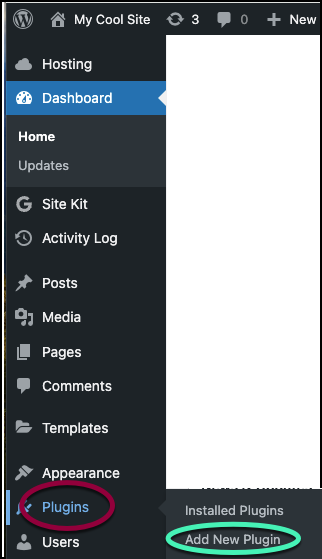
The plugin directory appears.
- In the search box, enter Ally-Web Accessibility.
- Locate Ally-Web Accessibility by Elementor.
- In the Ally-Web Accessibility plugin card, click Install Now.If you are using, or have ever installed the One Click Accessibility plugin, refer to Moving from One Click Accessibility to Ally-Web Accessibility.Note
- After the plugin is installed, click Activate.
Ally-Web Accessibility is installed on your site and can now be found in the WP Admin panel.
Now you need to connect the plugin to your account.
Connect Ally-Web Accessibility
Before using Ally-Web Accessibility, you need to create and connect to your account.
To create and connect to your account:
- Go to your WP Admin.
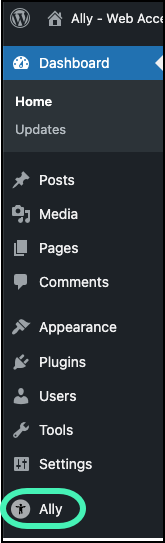
- Navigate to Web Accessibility.
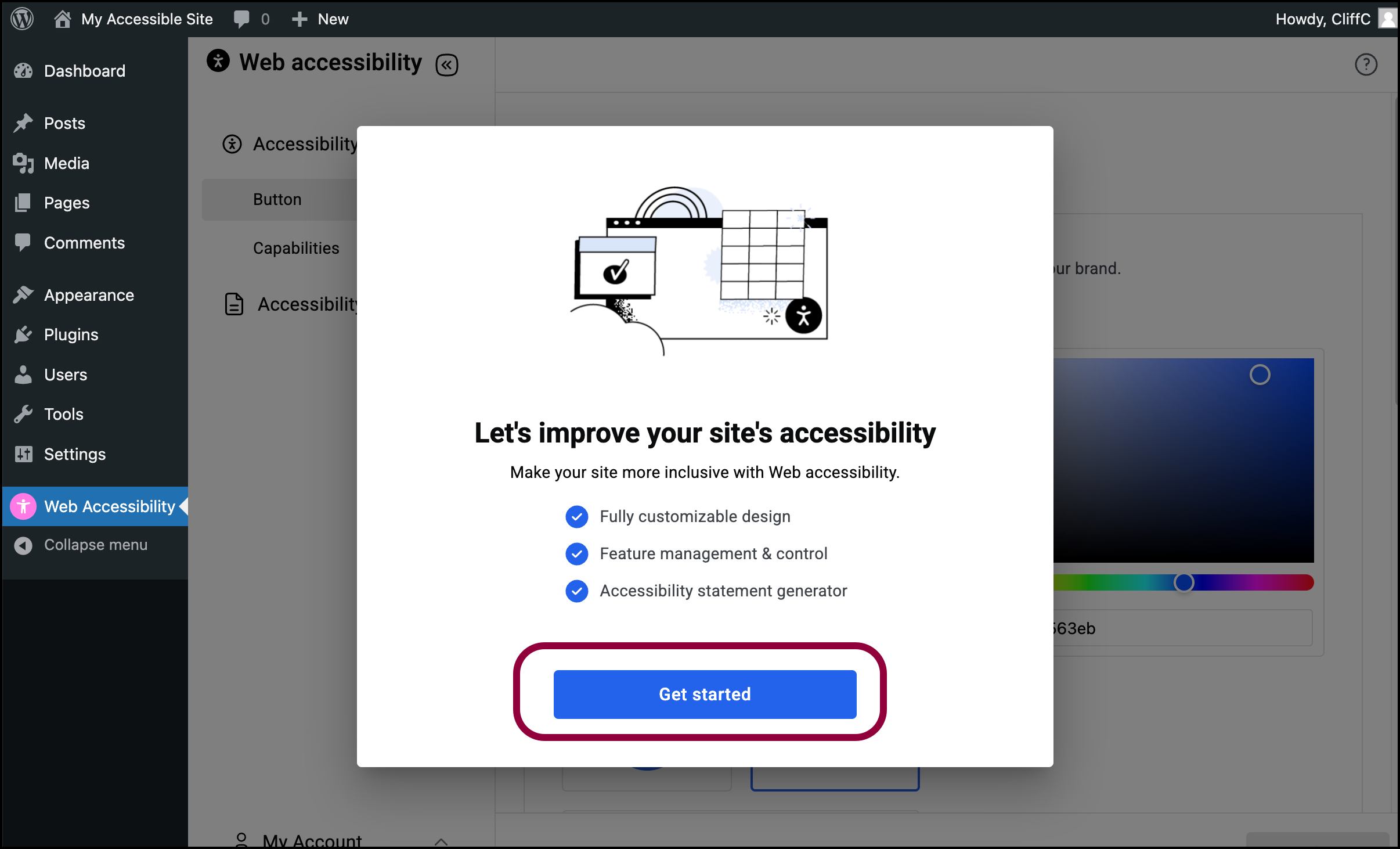
- Click Get Started.
If you do not have an Elementor account, you’ll need to create one. A wizard will walk you through the process. For details, see Create an account.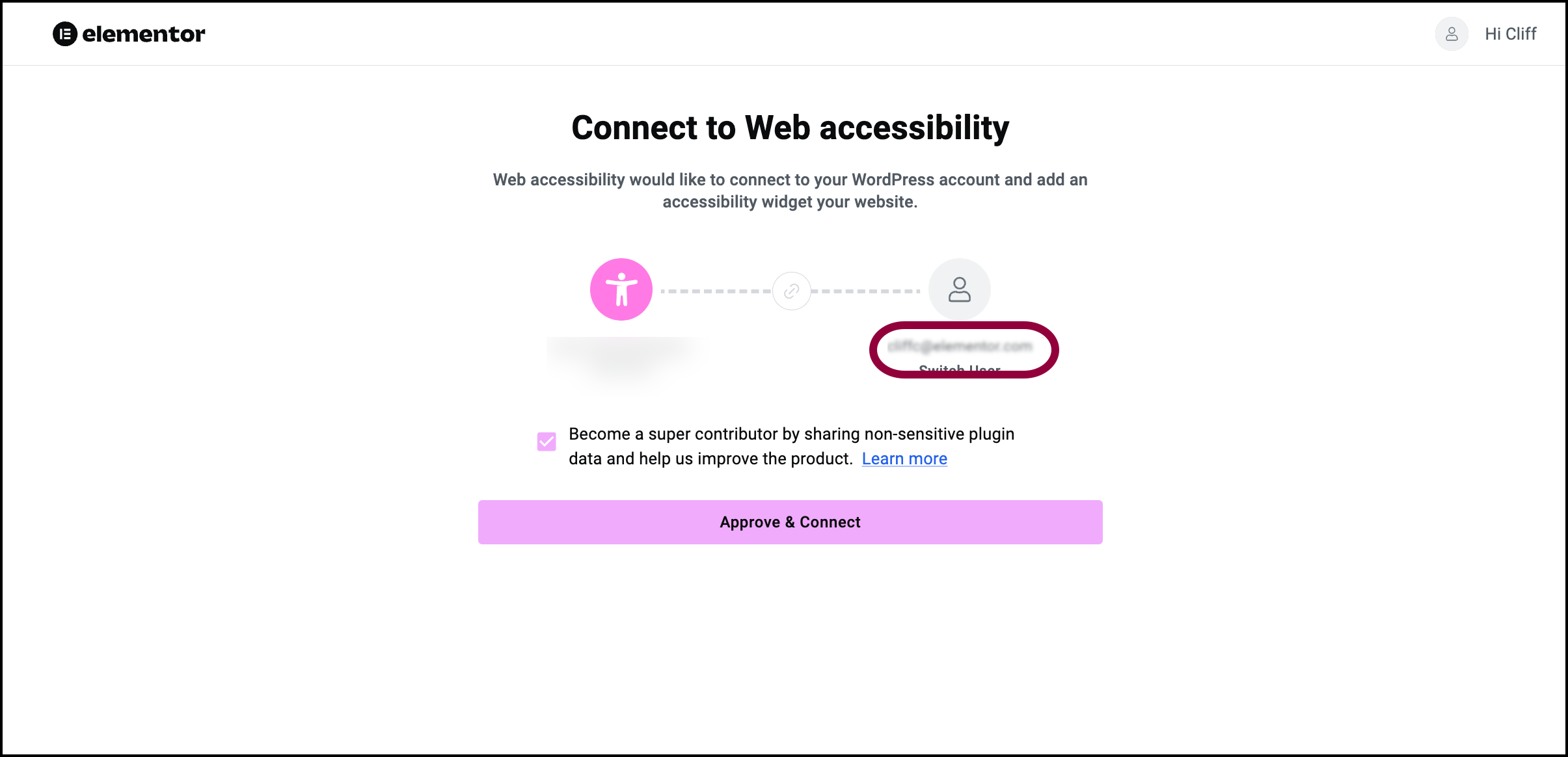
- Confirm that you’re connecting to the correct account. If the correct account does not appear, click Switch User and connect to the correct account.
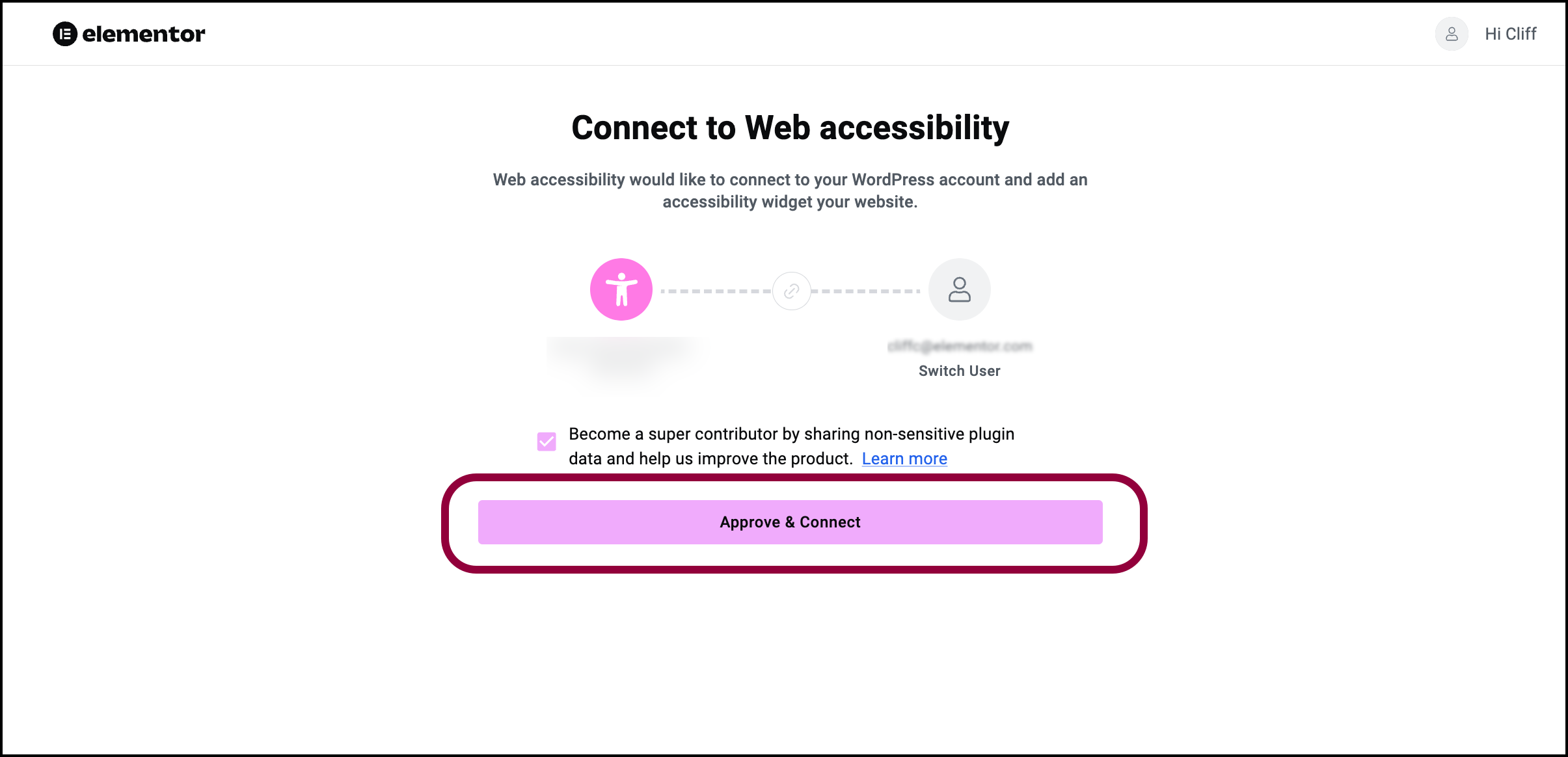
- Click Approve & Connect.
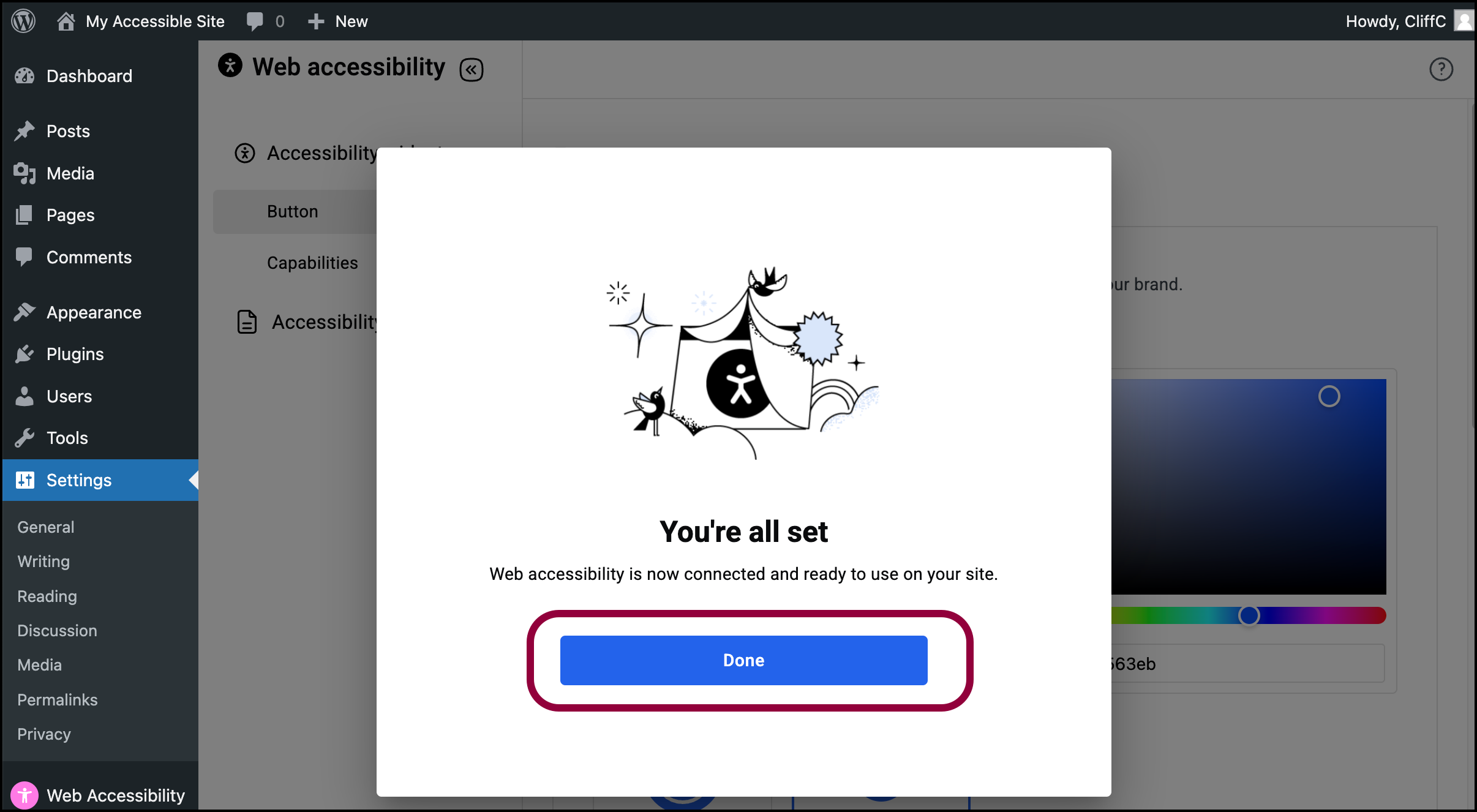
- Click Done.
Web Accessibility is connected to your account.

